

The PipeLedger NetSuite Accounting Agent is an AI accounting agent that researches transactions in PipeLedger’s financial warehouse, using fast queries across connected systems alongside your accounting history, financial ontology and governed definitions. You review the evidence and approve the proposed treatment. The configured execution workflow then applies supported approved changes in NetSuite and checks the result.
PipeLedger links shared decision context, economic descriptions and key evidence references to the relevant ledger entries, helping you explain and substantiate accounting decisions during an audit. Your contracts and source files stay in your own environment. Revised context is retained as new versions.
This guide explains what the agent can do, how to connect it and how to set up your workspace.
What your NetSuite agent can do
Research the treatment, review the proposal and retain a clear record of the outcome. Below is the work your agent can perform in NetSuite.
How the NetSuite accounting agent works
Step 1 · Research
Investigate
- Compare each transaction with past treatments in your accounting history
- Pattern recognition across amounts, timing and recurrence
- Text-string matching on bank memos, payees and references to resolve the exact NetSuite records
- Fast queries across all connected systems in the PipeLedger warehouse
- Read available supporting documents
- Flag duplicates and conflicting records
Step 2 · Proposal
Review
- Apply your company instructions, approved decisions and policies, kept as Markdown files in your workspace
- Check treatments against accounting reference material for consistent, standard practice
- Propose account, counterparty, dimensions and economic description, with the evidence cited
- Check account, subsidiary, currency, accounting period and configured dimensions where relevant
- Hold back items the evidence can’t settle, with the open question
- Approve singly or in batches; a changed proposal needs fresh approval
Step 3 · Completion
Verify and document
- Apply supported approved changes through the configured execution workflow.
- Read the resulting NetSuite records and compare them with the approval.
- Investigate uncertain outcomes before attempting another write.
- Link the decision context, economic description and evidence references to the relevant ledger lines.
- Export an audit package with proposals, approvals, execution results and unresolved questions.
What the agent can do in NetSuite
| Work | Actions | What happens |
|---|---|---|
| Bank expenses | Record · Categorize | Record an approved bank payment as a NetSuite Check, using the agreed distribution account, counterparty and configured dimensions. |
| Credit-card purchases | Record · Categorize | Record an approved Credit Card Charge and check its accounting impact. |
| Bank receipts | Record · Categorize | Record an approved Deposit and check its accounting impact. Which dimensions can be set on each line depends on your configuration. |
| Existing transactions | Match | Link imported bank and credit-card activity to the exact verified accounting records. Matching is separate from statement reconciliation. |
| Journal entries | Create/post | Record balanced debit and credit posting lines for approved, configured journal cases. |
| Customer invoices | Create | Create an approved customer invoice using the agreed items, quantities, prices and configured dimensions, then verify the resulting record and accounting impact. |
| Vendor bills | Create | Create an approved vendor bill using supported expense or item lines and configured dimensions, then verify the resulting record and accounting impact. |
| Purchase orders | Create | Create an approved Purchase Order. Orders record a commitment and don’t post to the ledger. |
| Sales orders | Create | Create an approved Sales Order. Orders record a commitment and don’t post to the ledger. |
| Item receipts | Receive against purchase order | Record approved receipt of goods against a purchase order and check the inventory impact. |
| Item fulfillments | Fulfill against sales order | Record approved fulfillment against a sales order and check the result. |
| Vendors and customers | Create · Update | Add or update supported vendor and customer details for approved cases. |
Available operations depend on your company’s configuration, confirmed during setup. Invoices, bills, orders, receipts and fulfillments are create-only; the agent isn’t an unrestricted transaction editor.
Connect your accounting agent to NetSuite
Set up access for three jobs: researching your accounting data, working with NetSuite, and returning decision context to PipeLedger. Start with the intended NetSuite account connected to PipeLedger.
Give your agent access to financial research
Create a PipeLedger connection for the environment running your accounting agent: your computer, or an agent service connected to a messaging interface. Go to Credentials → Service credentials → New service credential.
Give it a recognizable name, such as Accounting Research Agent - Slack. Choose Viewer access and enable the financial tools and company data the agent needs. For Slack or Microsoft Teams, the credential belongs to the agent service handling the messages. If you run the agent locally, add the credential to the protected
config/folder in your workspace.The agent can then research published accounting history, accounts, projects and governed definitions in PipeLedger.

Select the right NetSuite connector
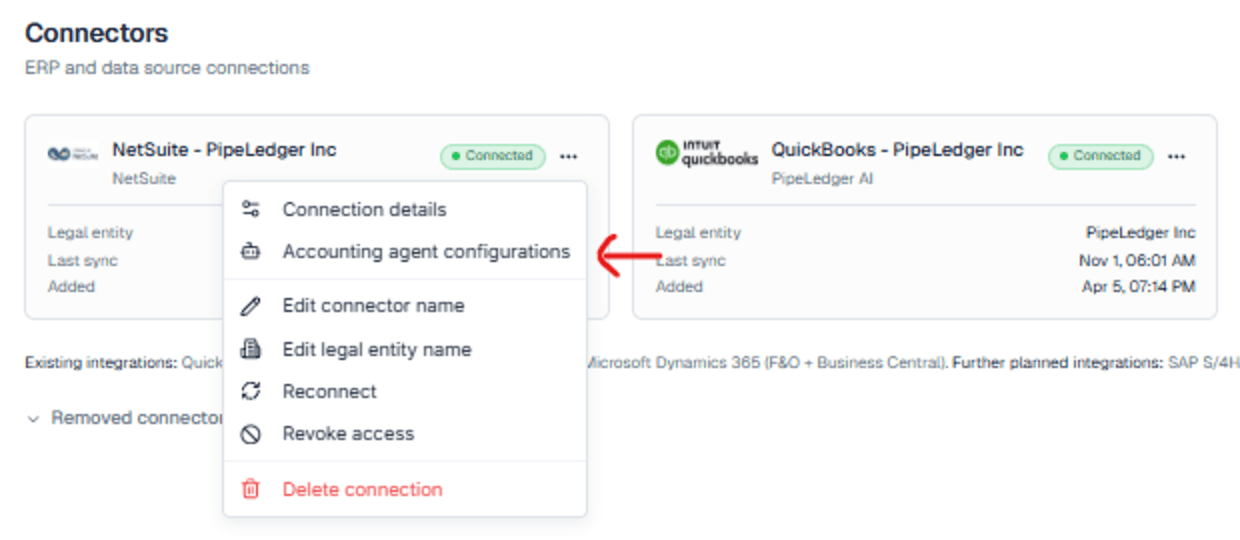
In Connectors, find the NetSuite account the agent will work with. Confirm the account and company scope, including subsidiaries and accounting books where you use them. Then open its ⋯ menu and select Accounting agent configurations.
This keeps the agent’s returned explanations associated with the correct accounting source.
Enable delivery of accounting context
Enter an agent name and select Create credential and connect. Save the credential where your agent runs: in your managed agent platform, a secret manager, or the protected
config/folder on your local machine. Add the supplied delivery settings alongside it. This credential can only deliver context; it can’t read your ledger or reports.It lets the agent return:
- The economic description
- Service-period dates, when known
- Reported decision participants
- Safe evidence references, such as check numbers, document numbers or customer document codes
- Proposal lineage, when supplied
Once a NetSuite record is verified, the agent sends its context to PipeLedger, which stores the delivery and returns a receipt. The receipt confirms storage only. The next normal refresh matches eligible context to the accounting records and includes it in the governed publication.
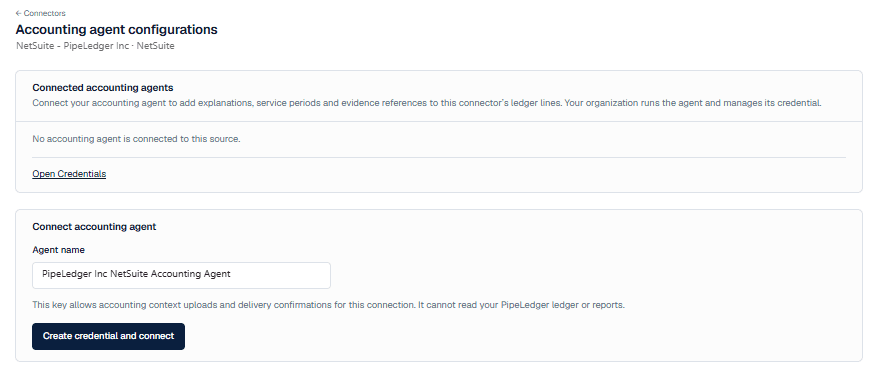
Illustrative NetSuite labels on the QuickBooks configuration screen; a native NetSuite capture is pending. Connect NetSuite for evidence and approved execution
Your administrator sets up two NetSuite roles: one for approved accounting operations through your AI environment, and another for background reading where required.
Configure two separate NetSuite connections. The NetSuite MCP tools, connected through interactive sign-in, perform supported approved changes. A certificate-based connection, where required, reads records in the background. Keep the two registrations distinct: Oracle’s standard AI Connector integration must have the M2M grant cleared.
Part A · Interactive sign-in
Connect NetSuite MCP tools
This connection performs supported approved changes.
- Create the operator role. A non-Administrator role, such as Accounting Agent – MCP Operator, restricted to the intended subsidiaries and books. At minimum it needs Log in using OAuth 2.0 Access Tokens, MCP Server Connection and REST Web Services at Full, plus the records your enabled operations need. Never grant full access to all records.
- Assign it to the authorizing user, the person who signs in from your AI environment.
- Enable the features. Server SuiteScript, OAuth 2.0 and REST Web Services, then install the MCP Standard Tools SuiteApp.
- Connect and confirm. Sign in from your AI environment with the operator role. Confirm the account, records and permitted operations before enabling execution.
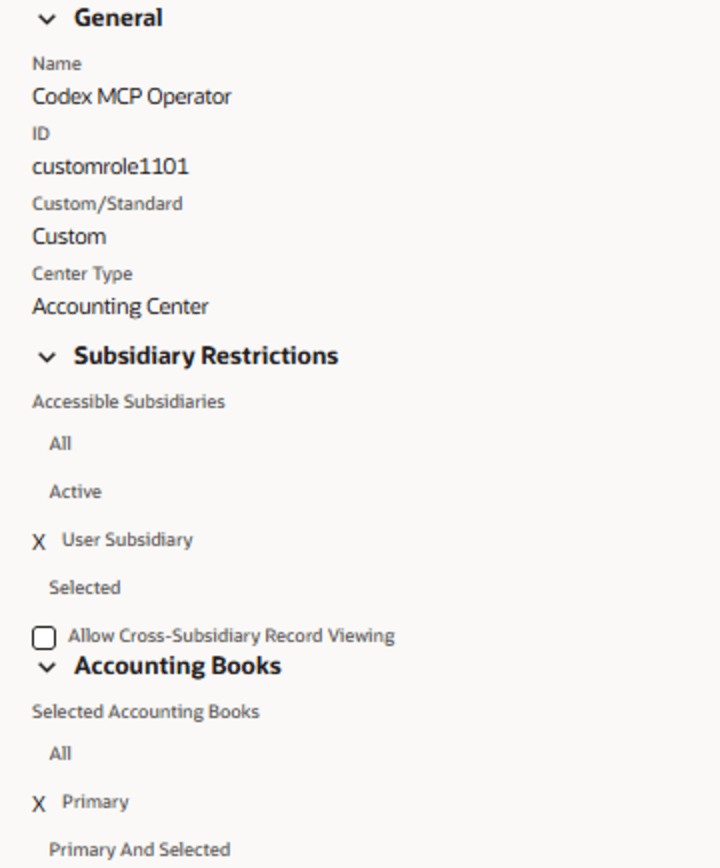
Dedicated non-Administrator role, scoped to subsidiary and book 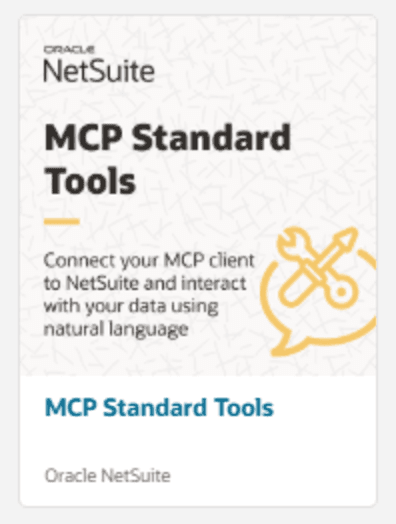
MCP Standard Tools SuiteApp 
Minimum Setup permissions on the role 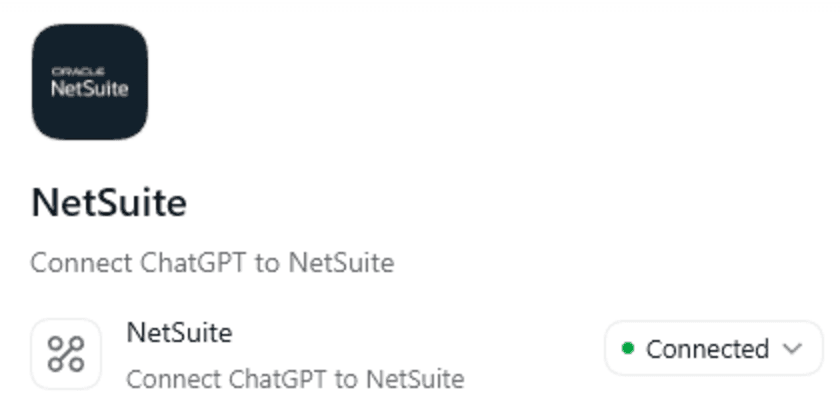
AI environment connected to NetSuite Part B · Certificate-based, where required
Set up the NetSuite background reader
Complete this part when your installed package uses the background reader to capture imported bank and credit-card activity and the accounting records used to review it. Other background checks may also use it; confirm the requirements in your package before skipping this step.
The background reader uses its own read-only role. Do not select the write-capable role used for approved accounting operations.
- Create a separate reader role. A non-Administrator role, such as Accounting Agent – Reader.
- Give it read access only. View the accounting records your enabled workflows need, restricted to the intended subsidiaries and accounting books. No create, edit or delete permissions on accounting records.
- Assign the role to an integration user. This is the NetSuite user you select when registering the certificate.
- Create the reader integration. Enable Client Credentials (Machine to Machine) Grant and REST Web Services. Keep it separate from the interactive MCP registration.
- Generate the key pair and register the public certificate. Follow the package instructions to generate the private key and public certificate. Keep the private key in protected configuration. In OAuth 2.0 Client Credentials (M2M) Setup, select the reader integration, integration user and reader role. Upload only the public certificate.
- Configure and test the reader. Securely store the connection settings alongside the private key, following the package instructions. Run the supplied connection check and confirm the account, role and record access before starting background work.
Reader role permissions for your administrator
Connection
- Setup · Log in using OAuth 2.0 Access Tokens · Full
- Setup · REST Web Services · Full
- Reports · SuiteAnalytics Workbook · Edit
- Setup · Records Catalog · View, if available
Records · View only
- Accounts, accounting lists and vendors
- Departments, Classes and Locations, where enabled
- Subsidiaries and currencies, where OneWorld is enabled
- Projects/Jobs and relevant custom segments, where used
- Find Transaction and only the transaction types required by your enabled workflows
For bank and credit-card review, confirm that this reader can read the imported activity and its accounting-record candidates. A successful MCP sign-in or metadata check does not prove reader access. Add the applicable bank import and matching permissions at View only, then run the package’s read-only access check.
Restrict access to the intended subsidiaries and primary accounting book. Leave Core Administration Permissions and cross-subsidiary viewing off unless separately required and approved. After read-only tests pass, the integration role can be made Web Services Only; do not use that role for interactive MCP sign-in.

Two roles: operator for changes, reader for background reads 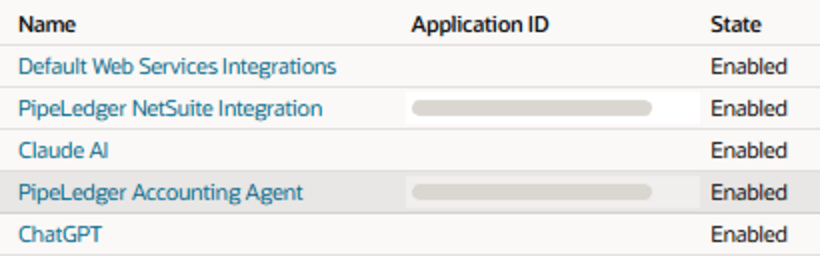
Separate integration record 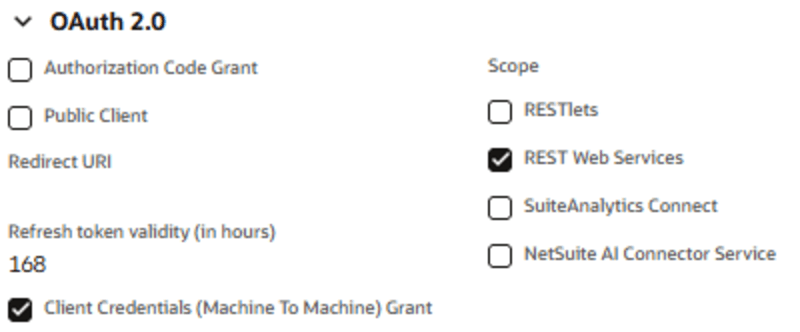
M2M grant on; AI Connector Service left cleared 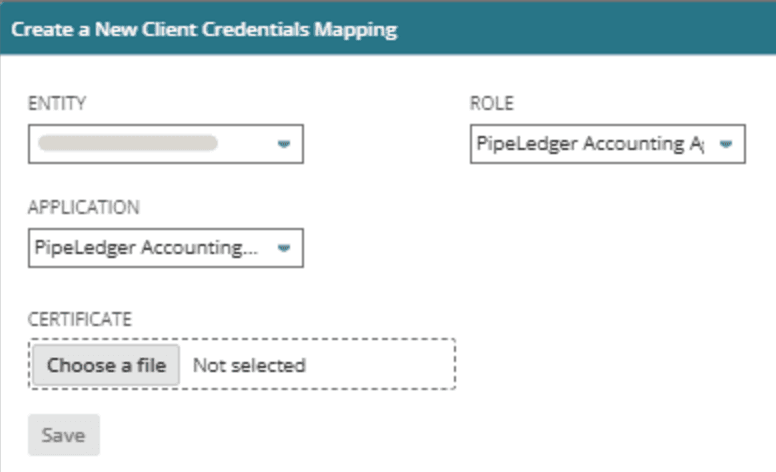
Map the application, integration user and role 
Certificate mapped to a read-only role
Safety tips
- Keep research read-only. Only the configured execution workflow writes, and only with verified approval.
- Use a dedicated non-Administrator NetSuite role limited to the records and operations the agent needs.
- Keep context delivery on its own credential, so research access alone can’t edit audit records.
- Keep the private key in protected configuration. Upload only the public certificate.
Accounting evidence, audit support and performance
PipeLedger retains the delivered decision context and evidence references. Your agent’s audit package holds the detailed approval, execution and performance history.
| Proposal ID | Proposed action | Source amount | Counterparty | Distribution account | Key dimensions |
|---|---|---|---|---|---|
| P0027 | Record Deposit | $18,500.00 USDIn · Wire | Northwind Holdings · Owner | Member contributionsOwner funding received by wire | Geographical segment: North America |
Why
Evidence
- Bank entry · incoming wire
BANK-2041 - Owner funding confirmation
FUND-014 - Operating agreement · §4 capital contributions
OA-2024
The wire amount and sender match the owner’s funding confirmation, and the operating agreement treats it as a capital contribution.
What happened
Audit support
Economic description
Owner capital contribution received by wire for working capital.
- Proposal approvedController · 10:12
- NetSuite Deposit checked10:19
- Context delivered to PipeLedger10:20 · version 1
How well
Performance
- 10/10
- items in the batch researched and delivered for review
- 4 min
- from request to 10 researched proposals, ready for approval
Fictional illustration of the design, not measured results. Evidence and audit support show one item; performance describes its ten-item batch. Context coverage varies by NetSuite record type. Source files stay in your environment or NetSuite.
Set up your local workspace
Each configured company workspace is bound to the intended NetSuite account and authorized subsidiary scope. Setup takes six steps.
Choose an AI environment
Pick an environment with the local file, terminal and browser access the configured adapter needs.
Open a dedicated company folder
One folder per configured company workspace keeps instructions, history and evidence separate.
Install the agent package
Install the reviewed accounting-agent package and its dependencies into the folder.
Add instructions, policies and protected configuration
Write the company instructions, add approved policies, and place credentials and any private key in protected configuration.
Verify the connections
Confirm the PipeLedger organization, NetSuite account, role, subsidiary and book scope where applicable, and the operations actually available.
Start read-only
Run a read-only review first. Enable supported execution once you’re satisfied with the proposals.
Your workspace folder
An illustrative layout. You write the files at the top level; the agent manages what’s inside Accounting Agent/.
Your company/
├── AGENTS.md             Company instructions
├── notes/                Approved decisions
├── reference/            Policies and supporting references
└── Accounting Agent/
    ├── config/           Company binding and capability configuration
    ├── product/          Installed, versioned software
    ├── work/             Review inputs and working material
    ├── runtime/          Durable operational history and state
    ├── evidence/         Retained supporting evidence
    └── reports/          Review reports and exported packages
What you manage
Credentials stay in protected configuration
Keep credentials and private keys in
config/, never in instructions, notes or working files.runtime/is not a cacheIt holds the durable operational history. Don’t delete or reset it.
Updates keep your history
A new version replaces
product/only. Runtime, evidence and reports are preserved.
Frequently asked questions
What is an AI accounting agent for NetSuite?
An AI accounting agent for NetSuite researches transactions, prepares accounting proposals and supports approved bookkeeping work. PipeLedger’s agent uses accounting data in its financial warehouse, cites supporting evidence and checks the results of supported changes in NetSuite.
Why does the accounting agent run in my own AI environment?
PipeLedger focuses on high-quality general ledger data and governed financial context. Our accounting agents and instructions run in the AI environment you choose, with shared standards for evidence, reasoning, performance tracking and approved operations.
You can connect your own contract-management tools, files and business systems while keeping control of your confidential information and intellectual property. Original documents stay where they are. Only selected ledger-impacting context, such as economic descriptions, decision details and evidence references, returns to PipeLedger. Your full contracts and source files are not uploaded.
PipeLedger publishes agent packages, setup guidance and updates online, so you can keep your agent current while managing your own environment.
How does an accounting agent improve consistency in my books?
The agent applies the same approved policies every time: how to invoice, how to record bills and how to prepare more advanced journal entries. Consistent treatment means fewer one-off decisions and more stable income statements, balance sheets, cash flow statements and the performance reports built on the same ledger, such as project, department and inventory reports.
Consistency also compounds. Consistently maintained vendors, customers and business roles strengthen the meaning of accounts, items, dimensions, descriptions, dates and the relationships between records in PipeLedger’s financial ontology. Before proposing a $100,000 purchase of a specific item, the agent can trace its impact from item to account, metric and report. Repeat transactions become more reliable over time.
What can the NetSuite Accounting Agent do?
It researches transactions in PipeLedger’s financial warehouse and prepares evidence-backed bookkeeping proposals. Supported NetSuite work includes recording and categorizing bank and credit-card activity, matching existing transactions, posting configured journal entries, creating invoices, bills, purchase and sales orders, item receipts and fulfillments, and maintaining supported vendor and customer details. Available operations depend on your company’s configuration. See what it can do.
Which accounting dimensions can the NetSuite agent use?
The agent uses Project, Geographical segment, Functional segment and Business segment where supported by your approved configuration. NetSuite departments, locations, classes and custom segments map according to that configuration. Customer remains separate.
Can I use my existing PipeLedger NetSuite connection?
Yes, for research. If your NetSuite account already syncs to PipeLedger, the agent can research its published accounting data and history. Making changes in NetSuite requires separate access with its own role; your existing connection doesn’t authorize accounting changes.
Can I set up the accounting agent myself?
Yes. Open the agent package in a compatible AI environment, create a dedicated company workspace and connect PipeLedger for research. Configure NetSuite access separately for the operations you want to enable. Follow the setup steps, and ask us if you need help.
Why do I need a separate NetSuite role or certificate connection?
PipeLedger research, context delivery and native NetSuite operations need different permissions. Approved changes use the NetSuite MCP tools through interactive sign-in. Background reads, where required, use a separate certificate connection, read-only in the setup shown. In both cases, the mapped role controls which operations are allowed. See the connection steps.
Can the agent post to NetSuite without my approval?
No. The execution workflow performs only the supported changes you authorize, using the exact proposal version you approved. You can approve proposals individually or as a clearly identified batch. A changed proposal needs fresh approval, and unresolved items stay open for your review.
Can the agent read supporting documents in NetSuite?
Where they’re available through its authorized tools. It can also use documents in your workspace or in separately connected systems. Each proposal cites the evidence used and flags supporting material that’s missing, inaccessible or unreadable.
What records does PipeLedger retain to support an accounting audit?
PipeLedger links the economic description, recorded contributors and evidence references to the relevant accounting records, and keeps earlier versions when context is revised. NetSuite record history is supplementary evidence. Your original contracts and source files stay in your environment.
How can I track the accounting agent’s performance?
Records distinguish items processed, completed actions, execution attempts, first-attempt completion, proposal revisions and later corrections, with research and execution times where recorded. Measures that weren’t recorded stay unmeasured. Successful execution alone doesn’t establish accounting accuracy.
How often should I run the accounting agent?
Run it regularly through the week so new activity is researched in small batches, then increase the depth of review at month-end. Background scheduling depends on your AI environment and configured adapters. Accounting changes still require your approval.
What happens if a NetSuite operation fails or its result is uncertain?
The execution workflow reads the resulting NetSuite records and compares them with the approval. If the outcome is uncertain, the item stays open for investigation before another write is attempted. A confirmed failure before posting can be retried once the cause is resolved and authorization is rechecked. A changed proposal needs fresh approval.
Does the accounting agent replace my bookkeeper or accountant?
No. It assists with transaction research, bookkeeping proposals and supported execution. Your bookkeeper, accountant or controller still sets accounting policies, applies judgement and decides which proposals are approved.